Unlock Keychain. Use the Start here admissions sequence, then Open filled for each desk.
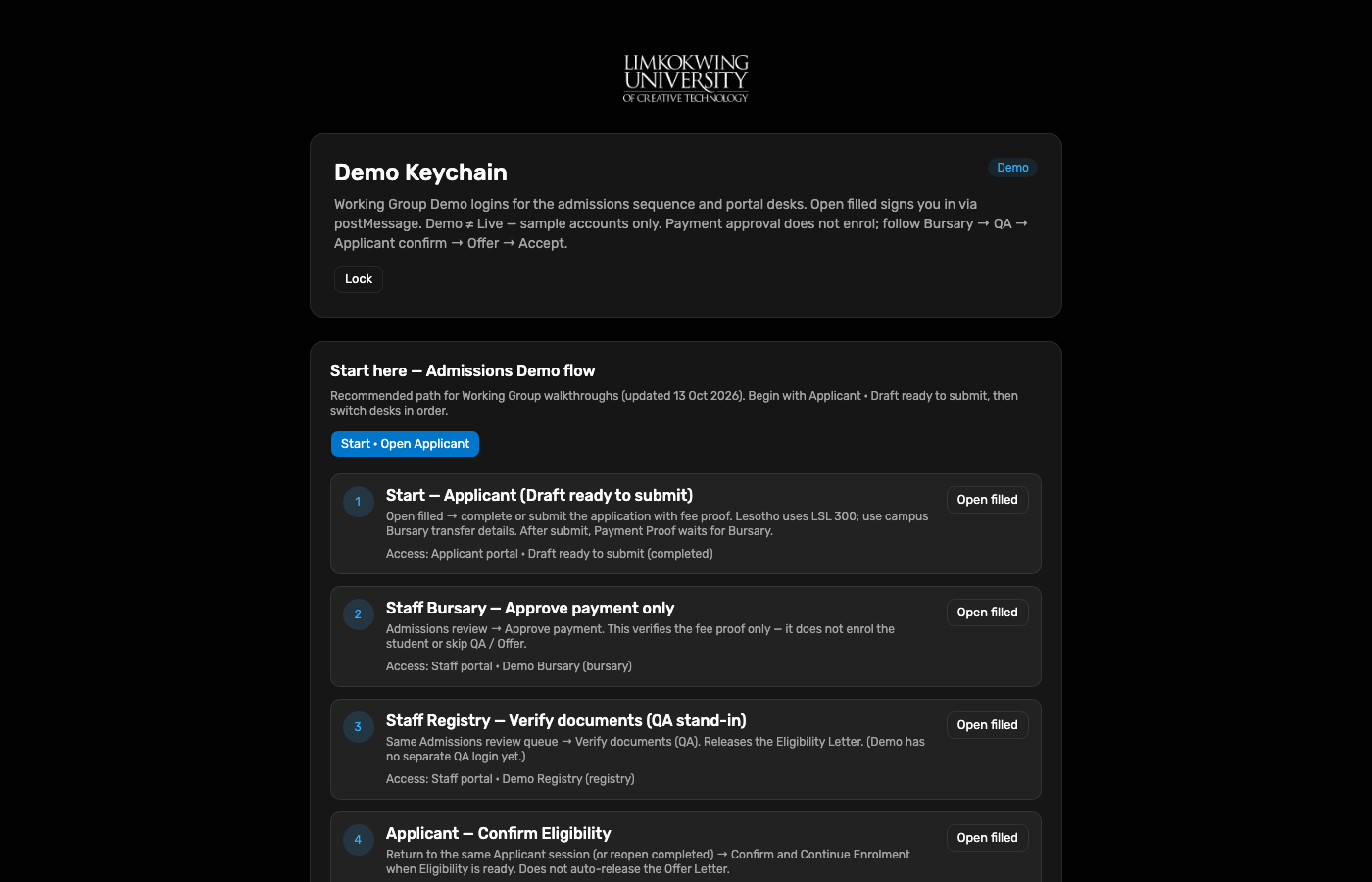
Working Group · End-to-end Demo test
Hosted Demo admissions walkthrough re-captured 13 Oct 2026: Bursary payment → QA documents → applicant confirm → Registry Offer → Accept Enrolment. Payment approval does not enrol. Demo ≠ Live.
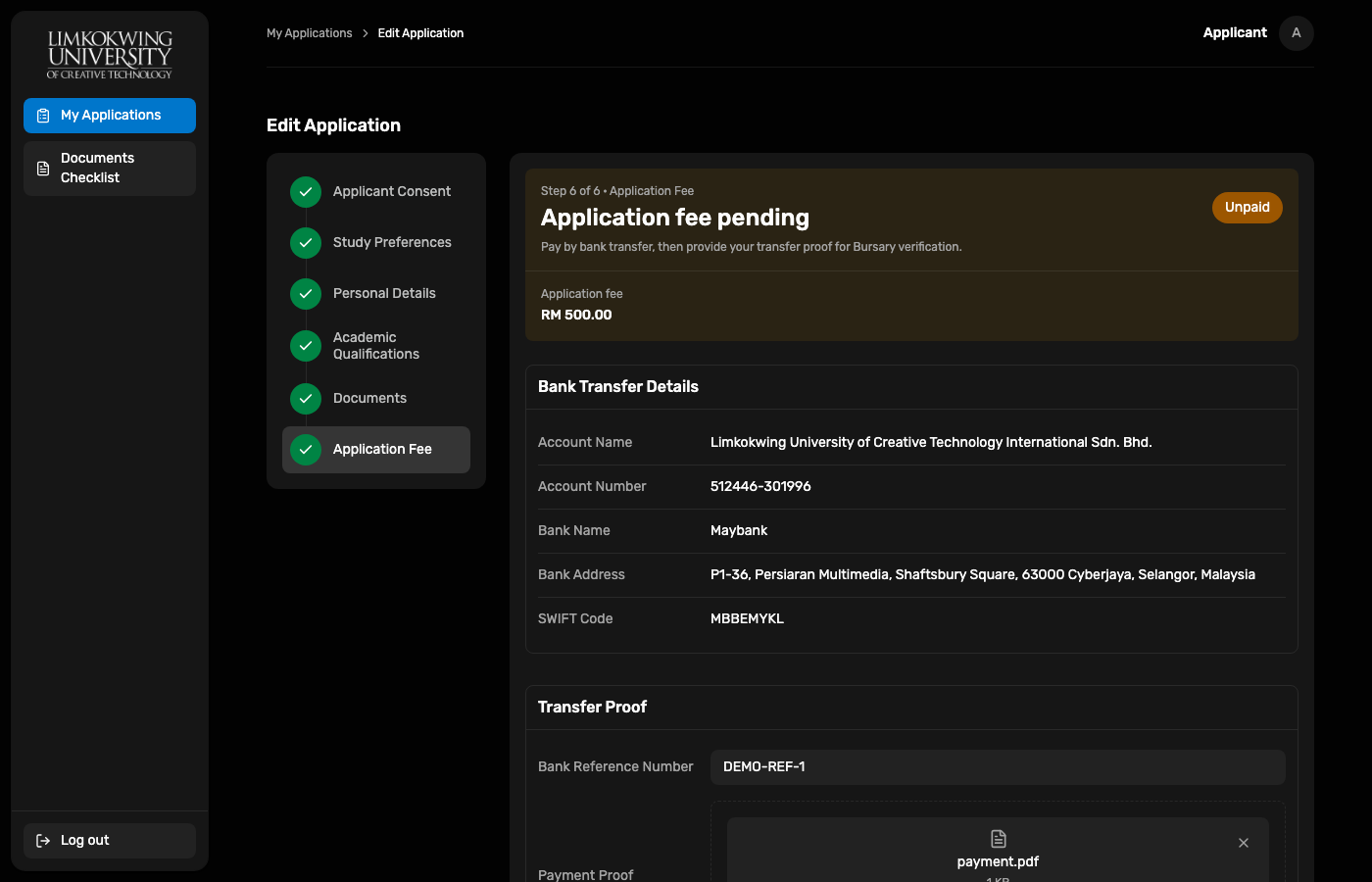
Scenario completed starts as a draft ready to submit (fee step with bank reference + payment.pdf).
Staff Admissions review (/payments) advances one desk at a time:
Bursary Approve payment → Registry (QA stand-in) Verify documents (QA) →
applicant Confirm Eligibility → Registry Release Offer Letter →
applicant Accept Enrolment. Only Accept Enrolment completes the path; continue in Student as Alya Putri.
| Surface | URL | Account / role |
|---|---|---|
| Demo Keychain | raisd-keychain.vercel.app | Master unlock · Start here sequence |
| Applicant Portal | raisd-applicant-portal.vercel.app | Scenario completed |
| Staff Portal | raisd-staff-portal.vercel.app/payments | Bursary bursary · Registry registry |
| Student Portal | raisd-student-portal.vercel.app | Alya Putri 10029841 |
| Portal API | raisd-portal-api.vercel.app | approvePayment · verifyDocuments · releaseOffer · confirm / accept |
Passwords are not published here. Use Demo Keychain (Open filled) or the WG credential note.
Unlock Keychain. Use the Start here admissions sequence, then Open filled for each desk.
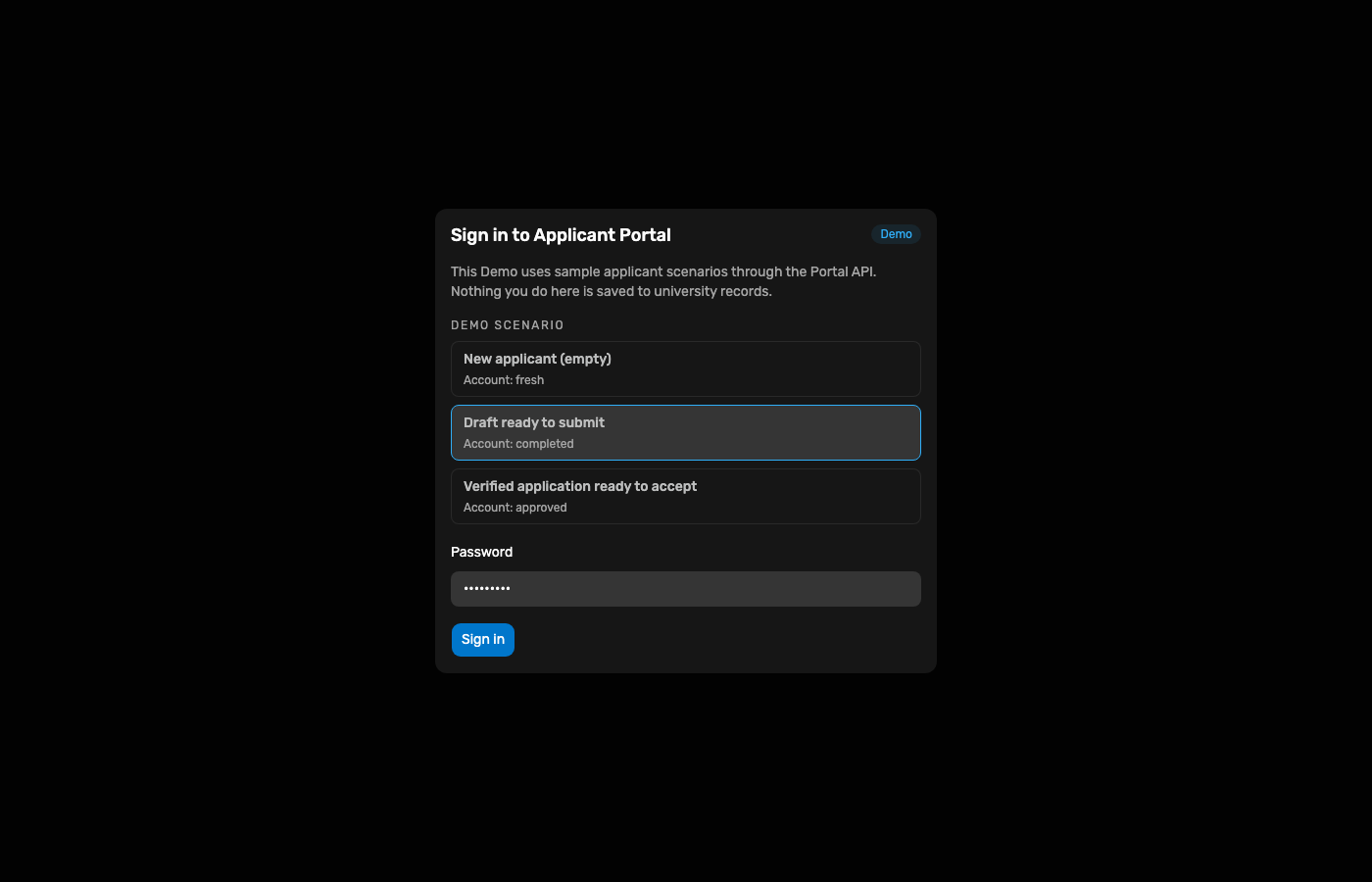
Scenario Draft ready to submit (completed) via Portal API Demo auth.
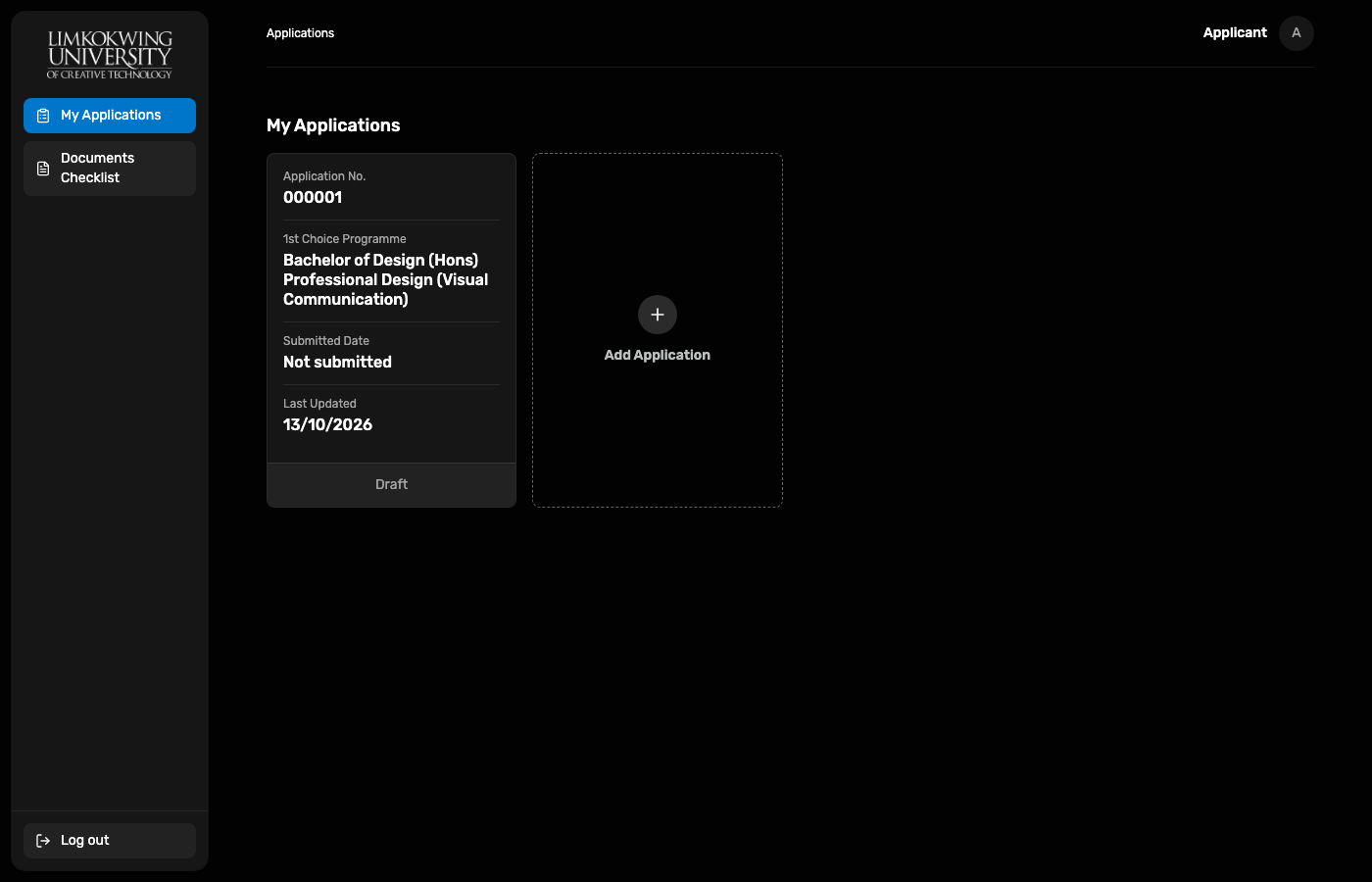
My Applications shows the draft card (not yet submitted).
Bank reference + proof payment.pdf, then Submit Application.
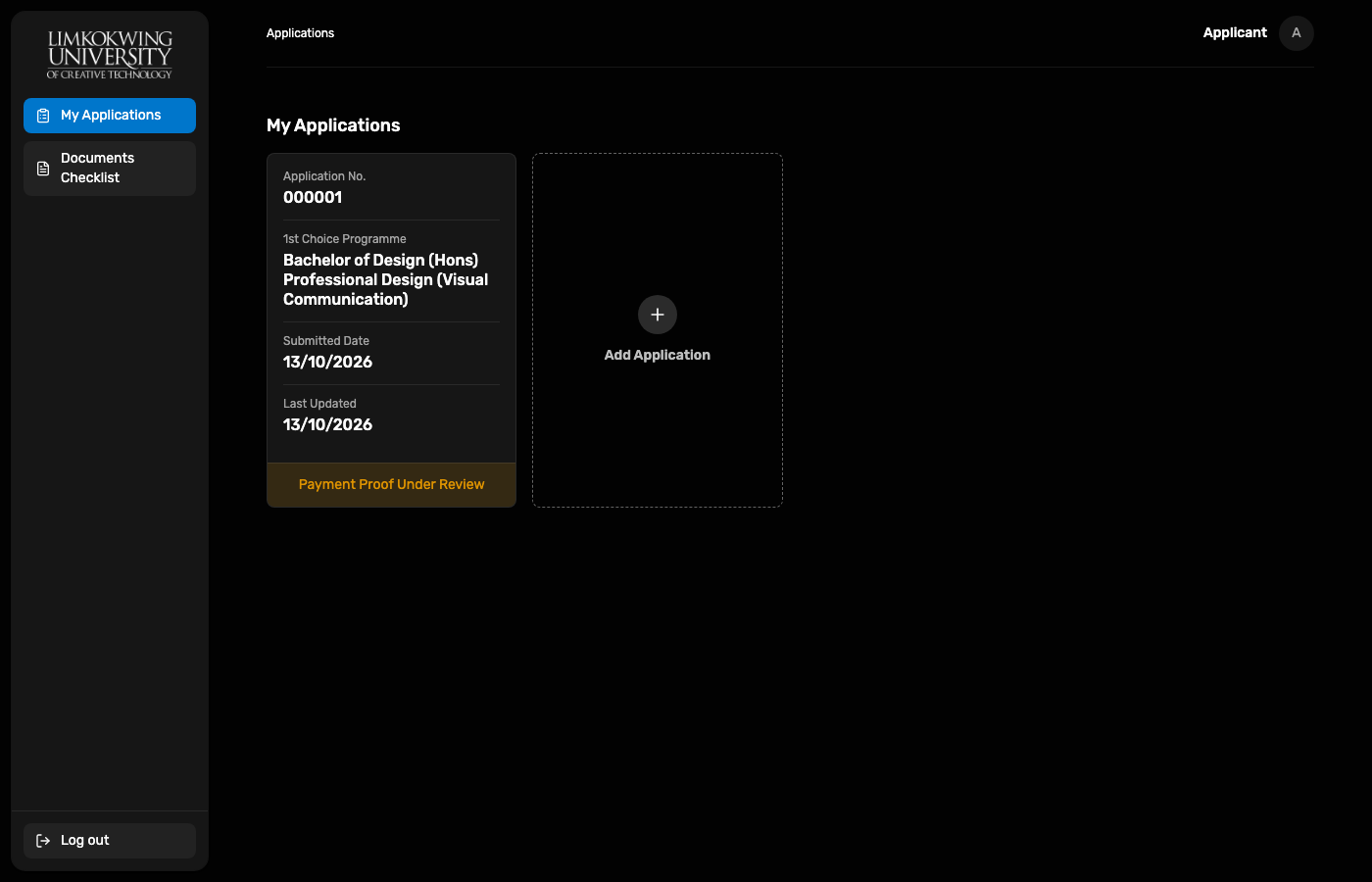
Status becomes Payment Proof Under Review.
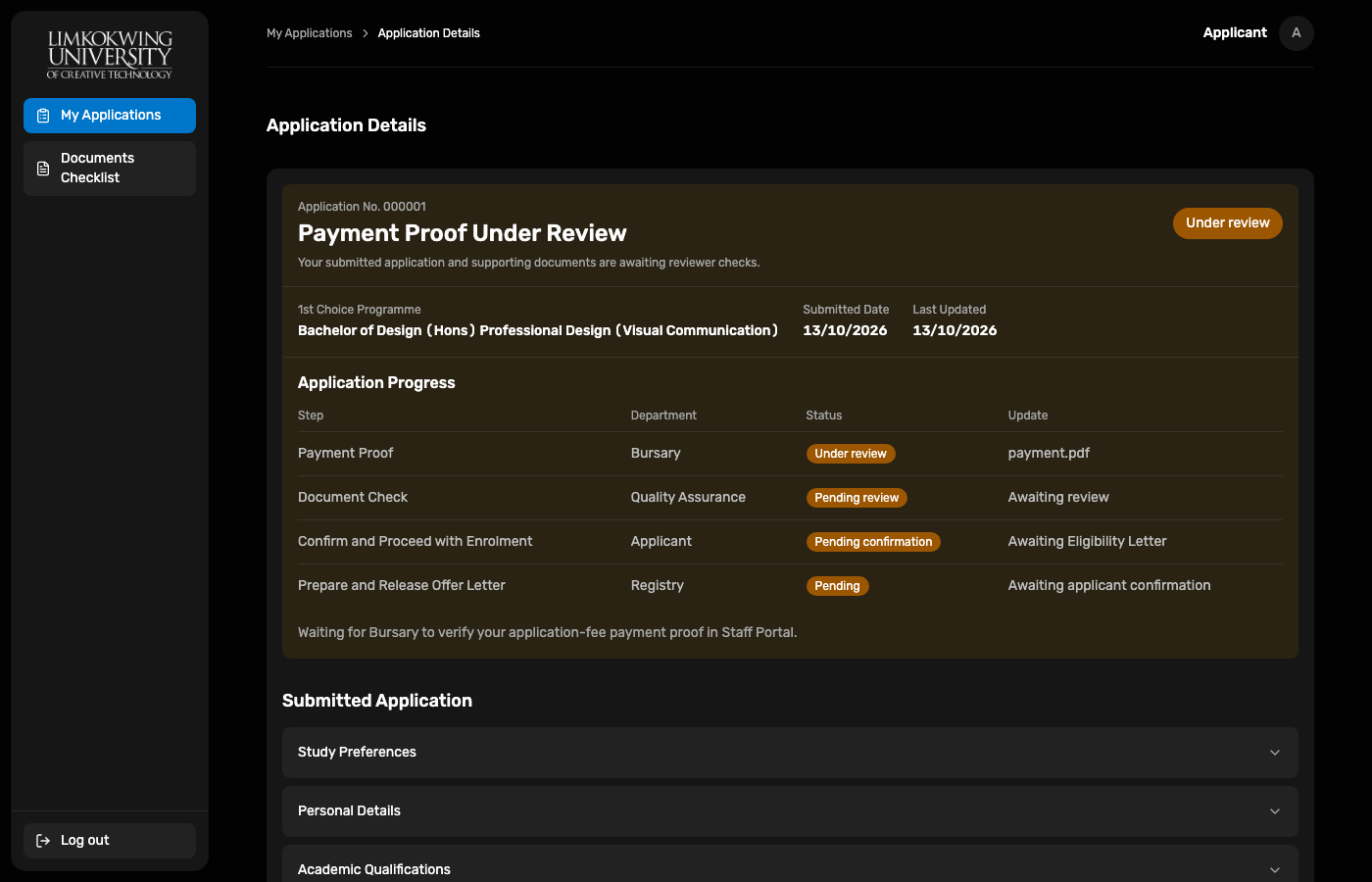
Application Progress: Payment Proof → Document Check → Confirm → Registry Offer.
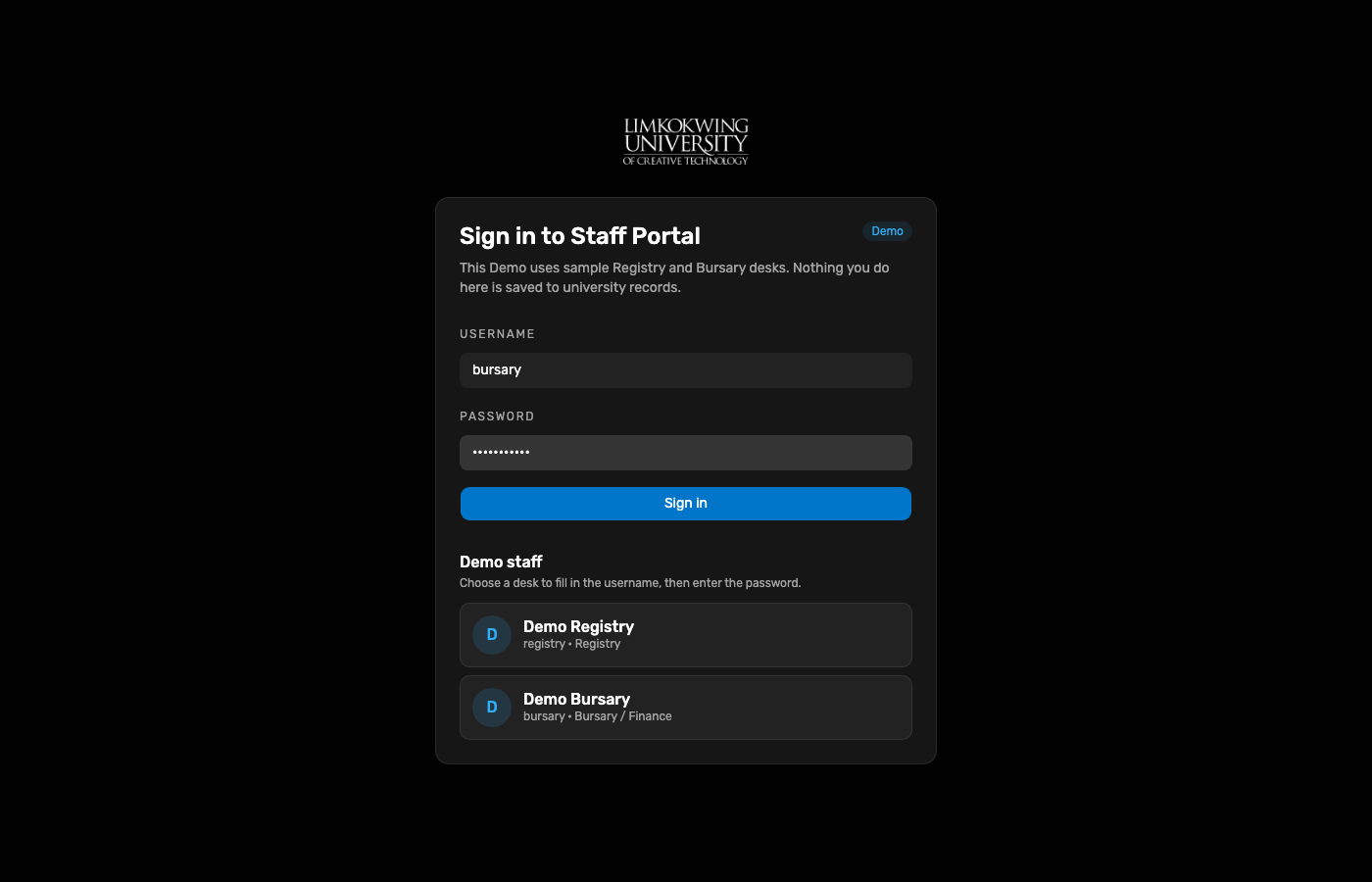
Bursary desk credentials; Demo ≠ Live banner visible.
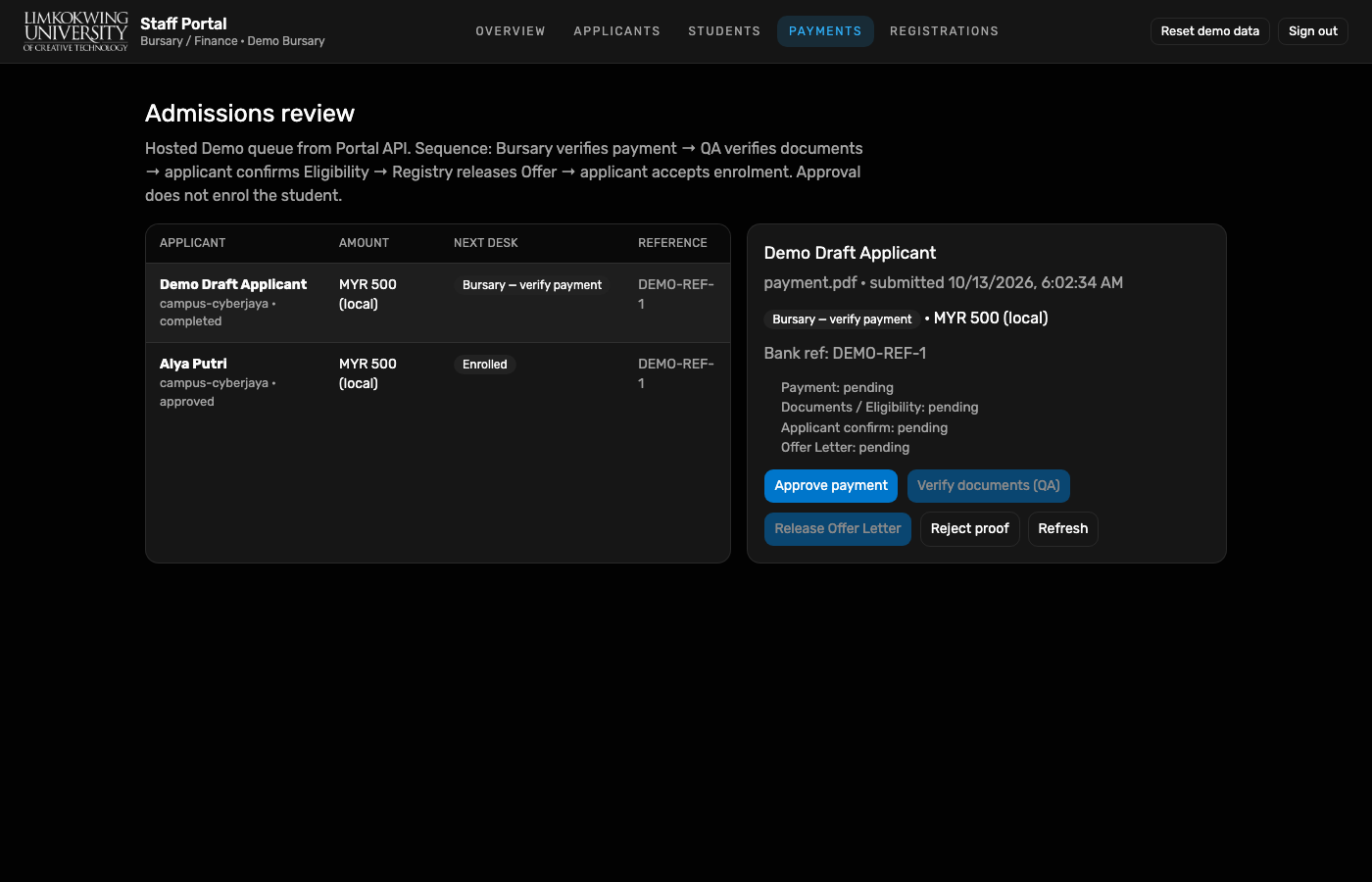
Next desk Bursary — verify payment. Control: Approve payment (not enrol).
Payment verified. Next desk QA — verify documents. Applicant is not enrolled.
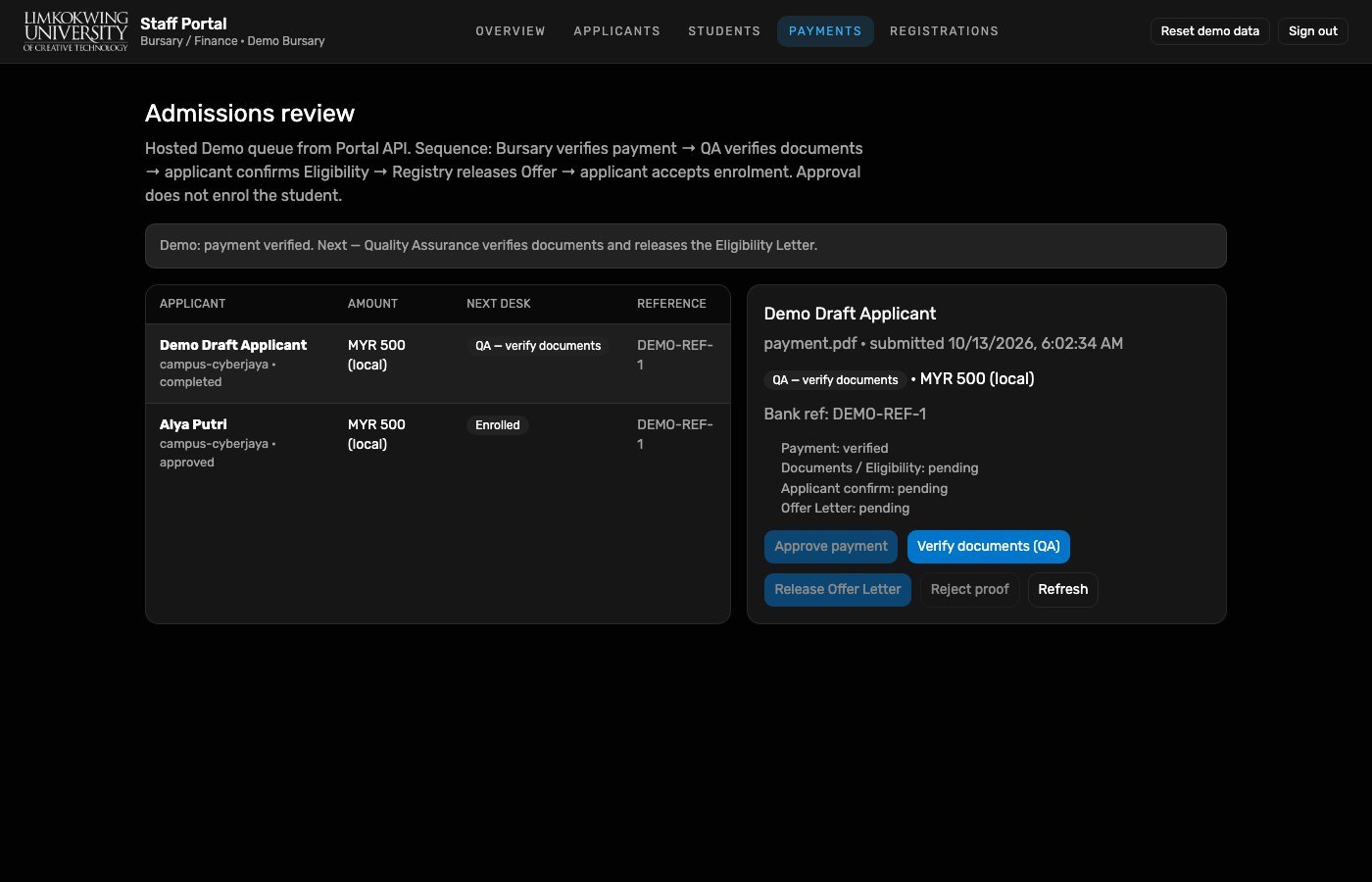
Verify documents (QA) releases the Eligibility Letter. Next: applicant confirm.
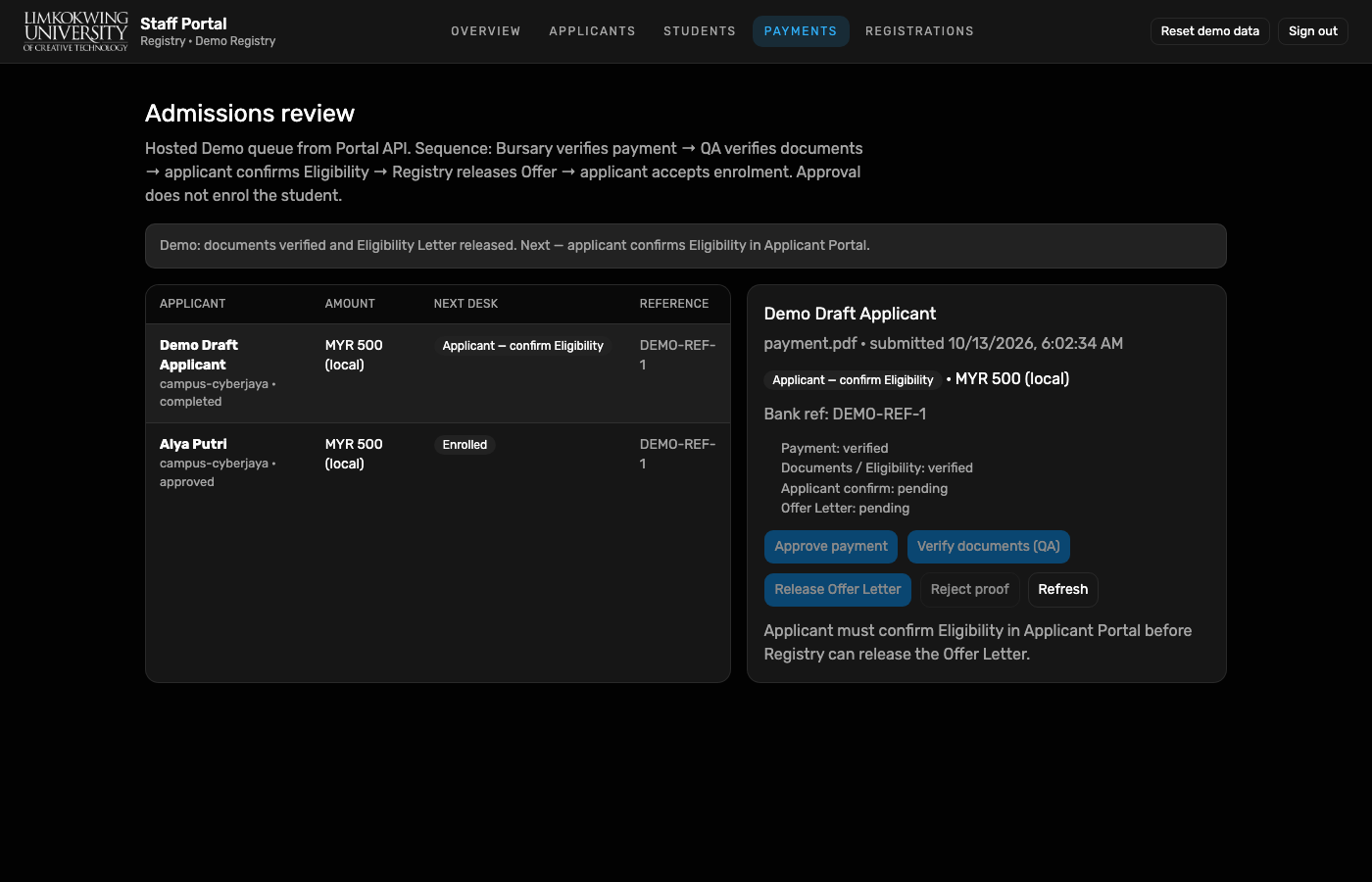
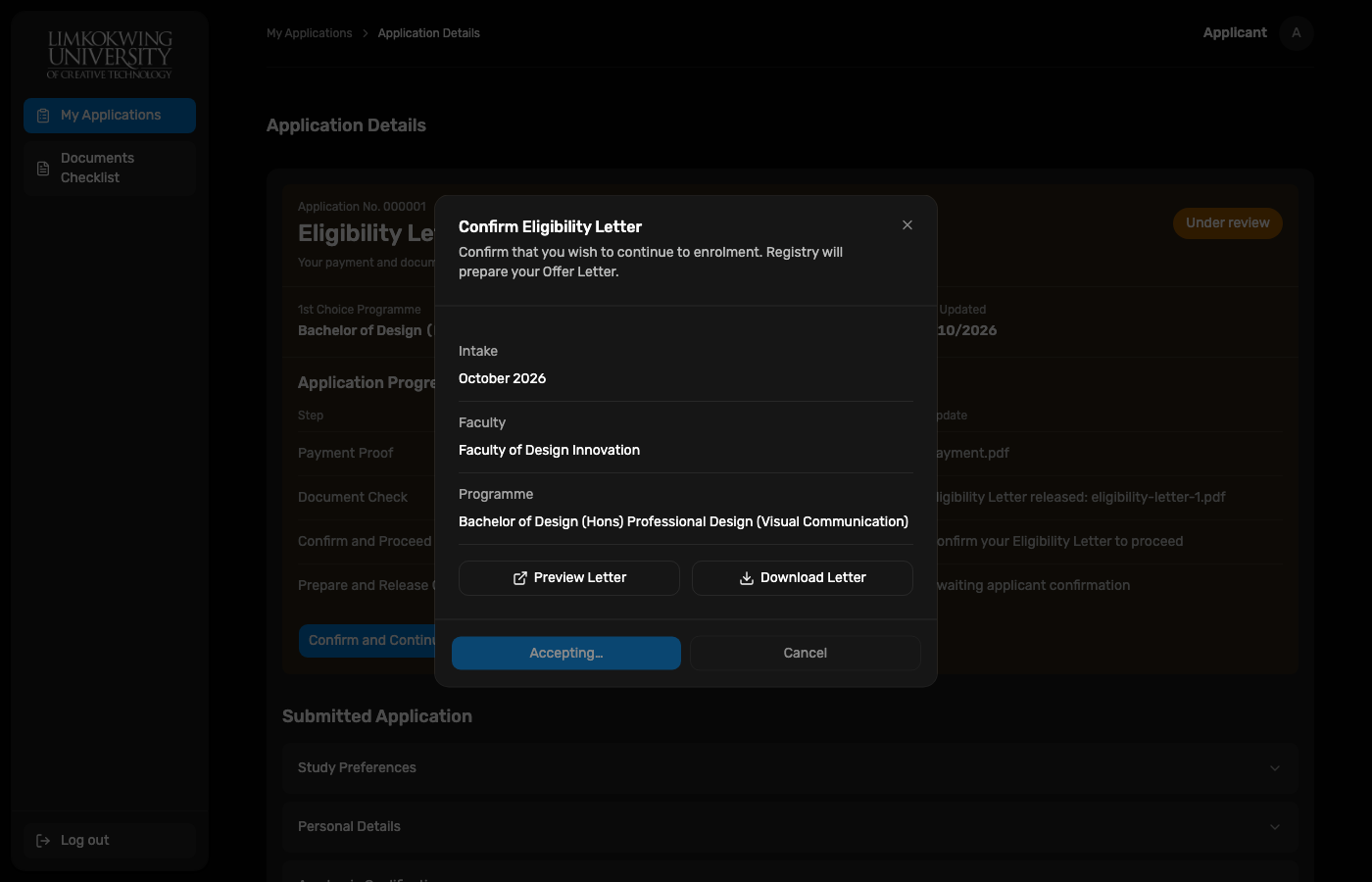
Confirm Eligibility Letter popup — intent only; Registry prepares Offer after confirm.
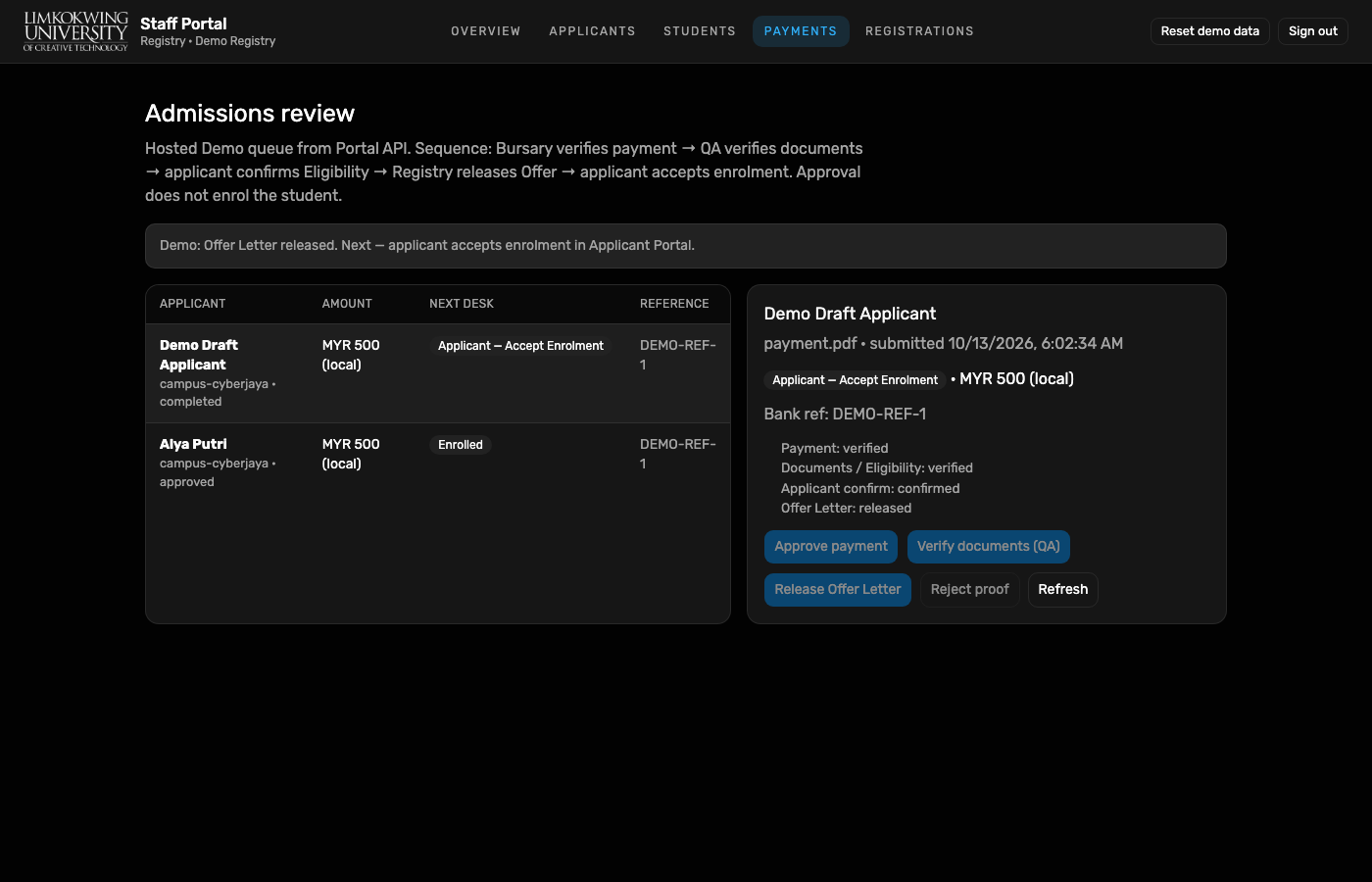
Release Offer Letter (releaseOffer). Next: Applicant Accept Enrolment.
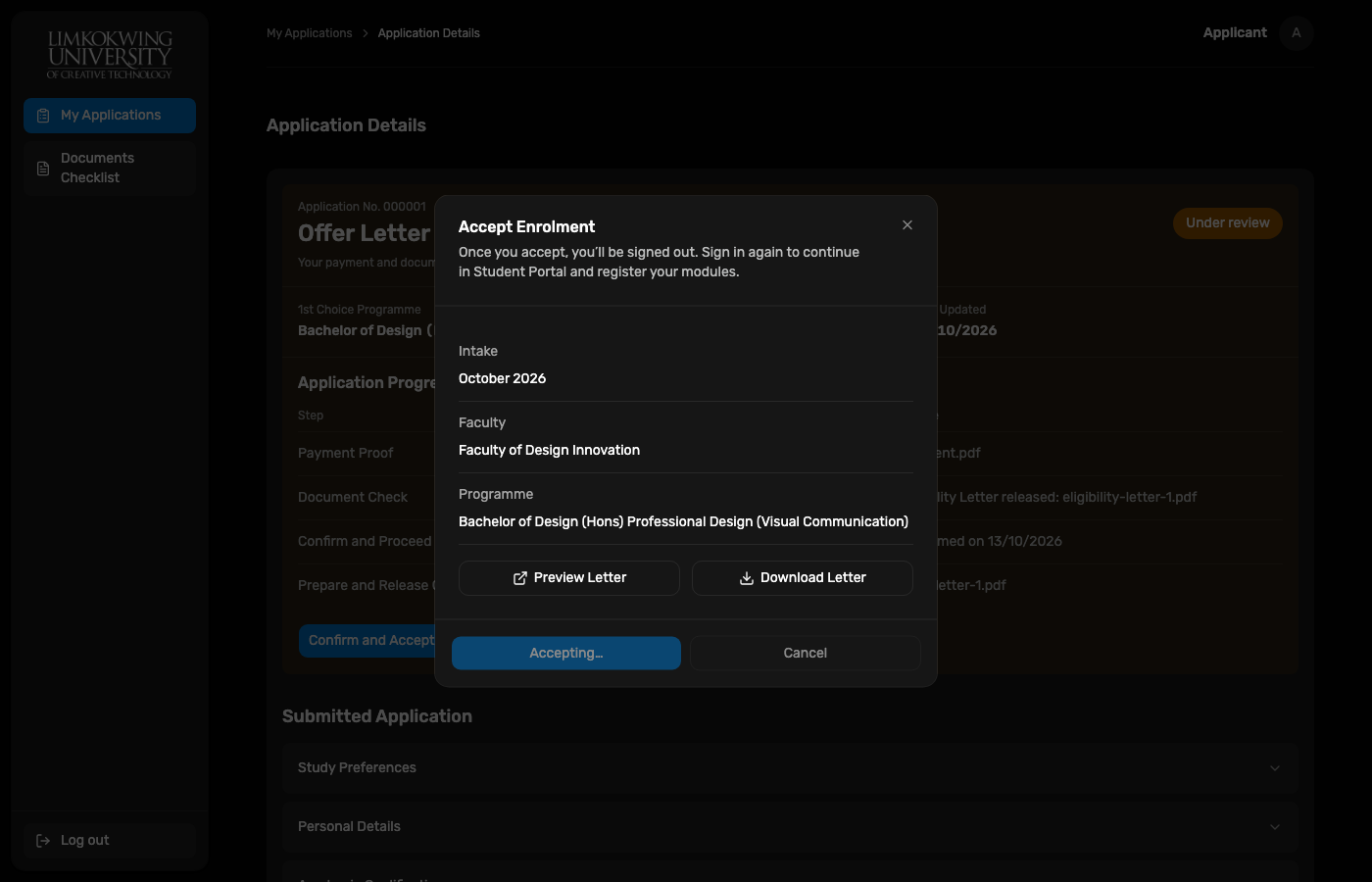
Accept Enrolment popup with Offer Letter preview/download. Successful accept signs out.
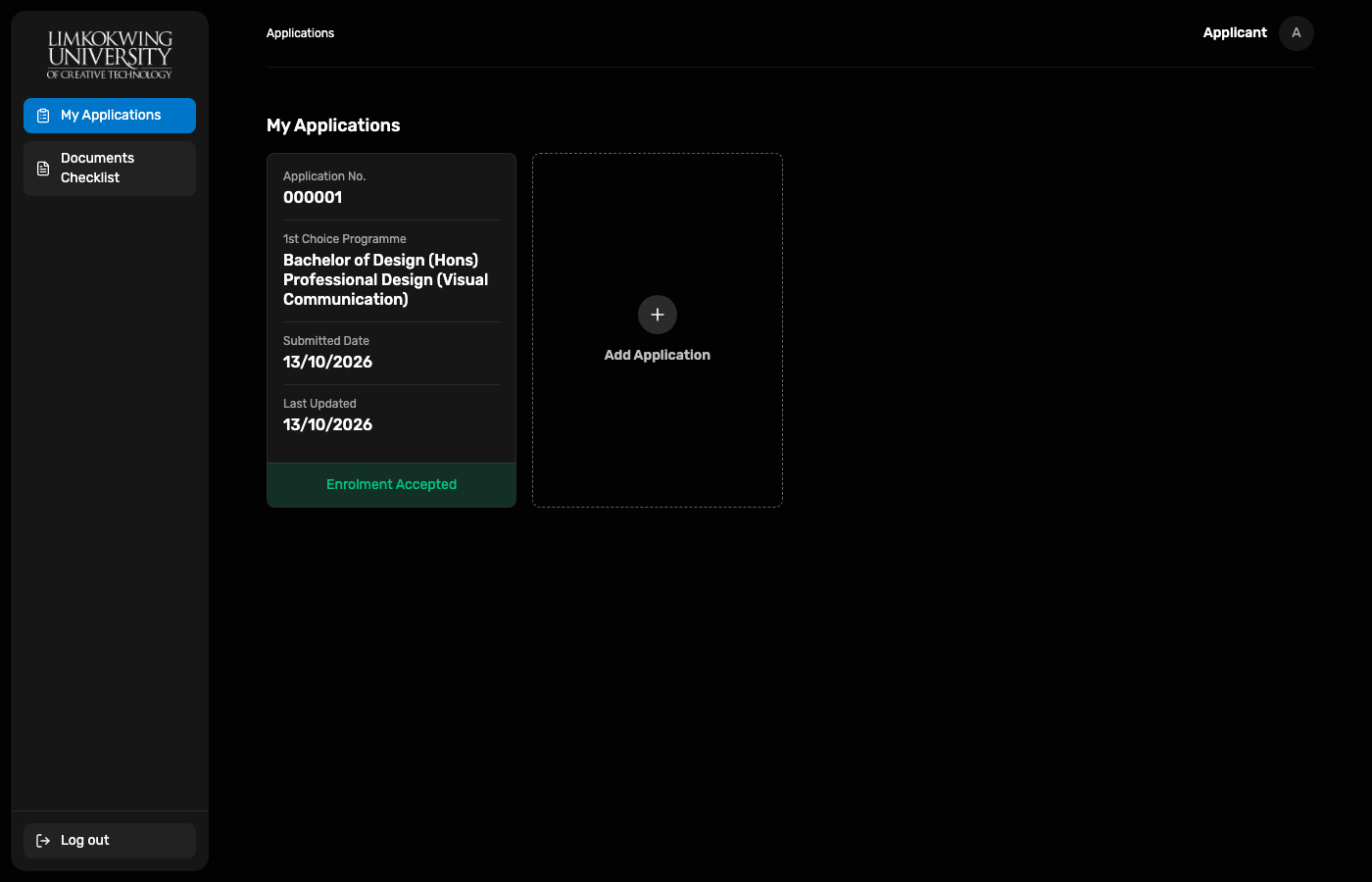
My Applications card status is green Enrolment Accepted.
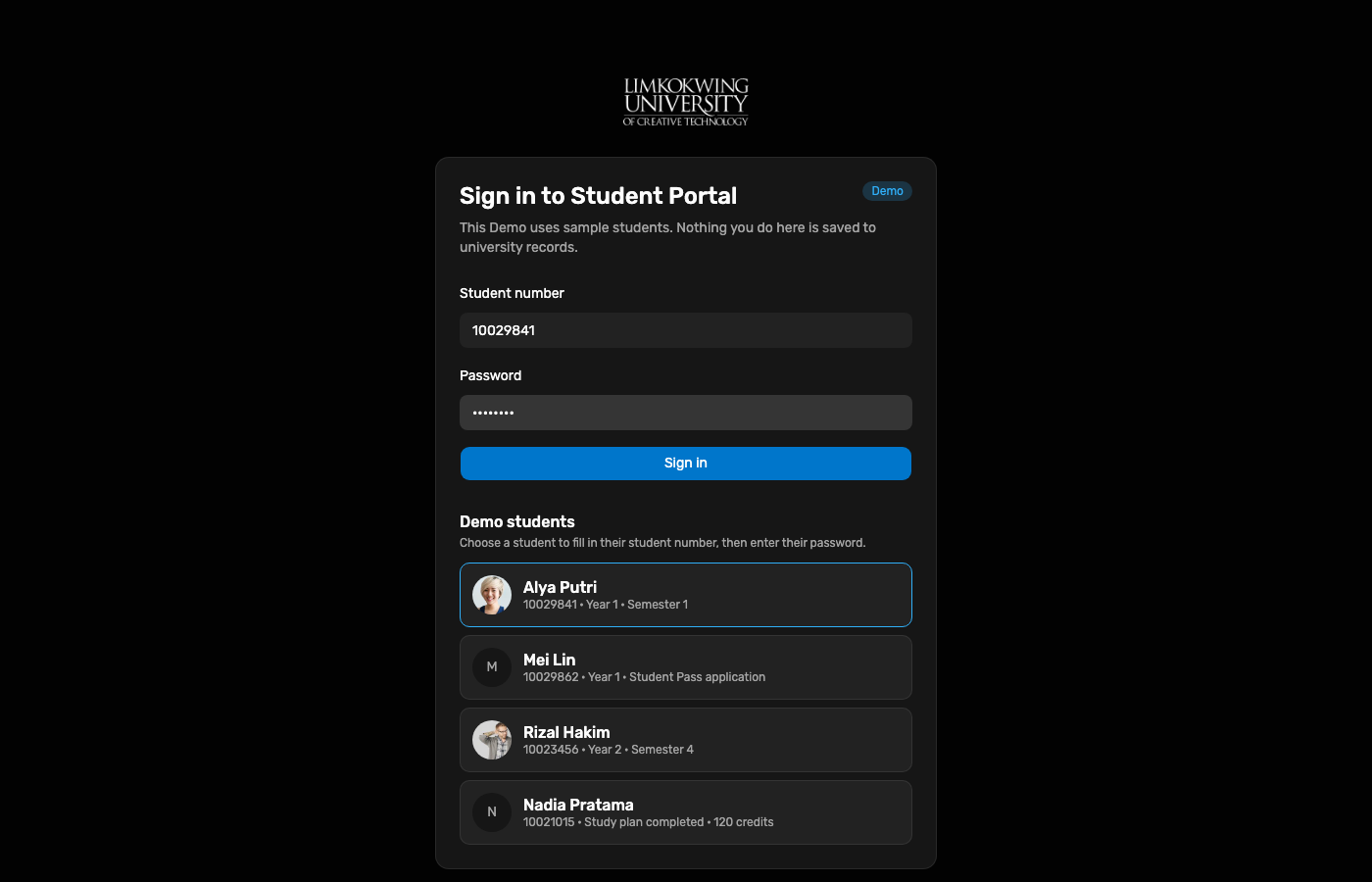
Registration Week Demo student Alya Putri 10029841.
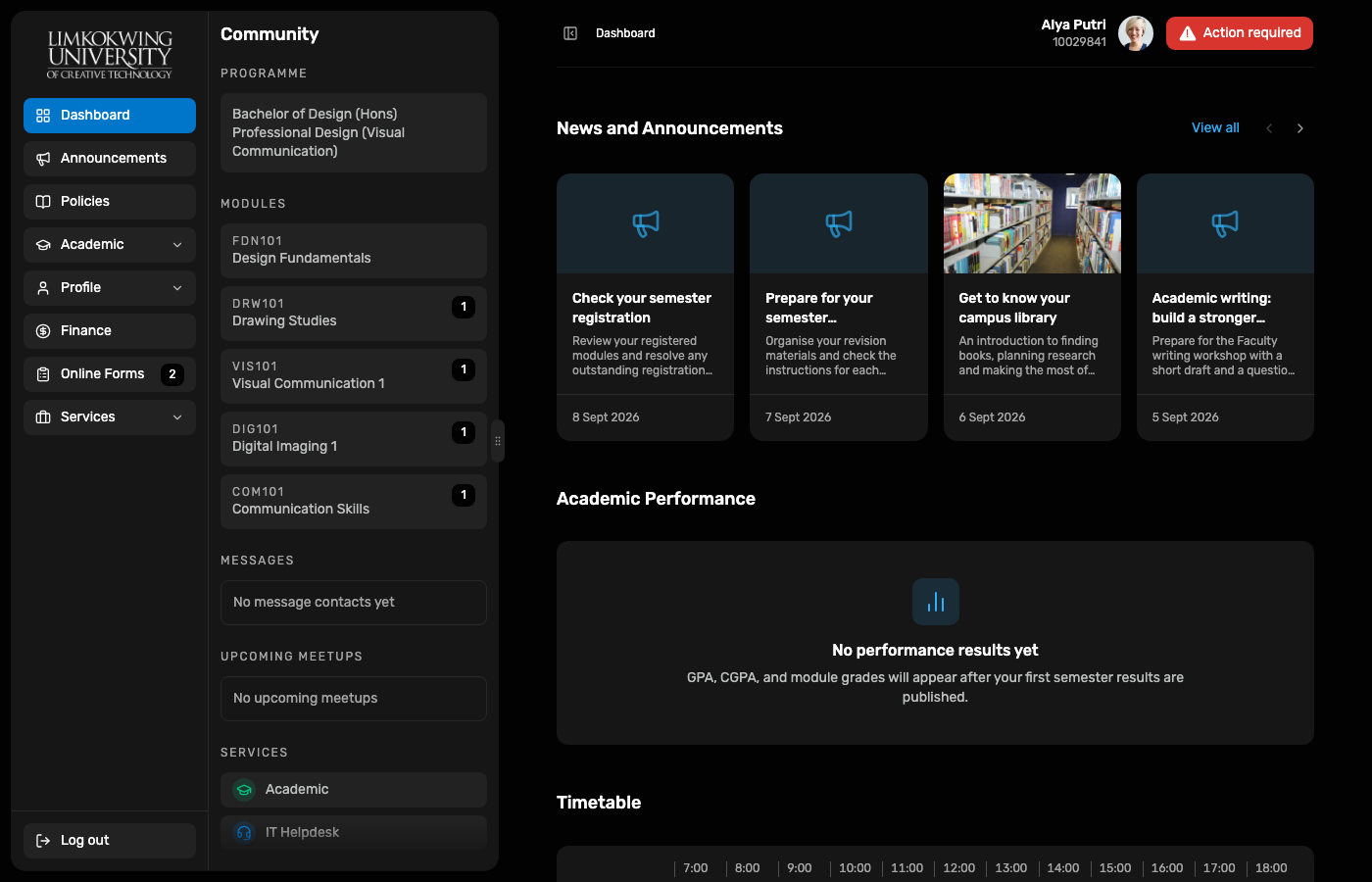
Dashboard loads for Alya with programme context and Registration Week cue.
completed → Resume draft → fee step → Submit Application → Confirm./payments → Approve payment.10029841 → Dashboard.
Capture script: node docs/reports/e2e-applicant-staff-enrol-2026-10-11/capture.mjs
(Playwright from applicant-portal + .credentials/demo-*.json).
If completed is already accepted in Neon, delete applicant-completed so the draft fixture reseeds.